
Star Citizen beginner’s guide: Your first session, step by step
Last checked , against Star Citizen Alpha 4.10.2 (live since ). Menus and keybinds change between patches. If something on your screen doesn’t match this page, go with what the game shows.
Your first session follows one simple run. You make a character, choose a home city, walk from your apartment to the spaceport, collect your ship, fly it up to a nearby space station, and land. By the end of that loop you’ve used nearly every core system: elevators, trams, the mobiGlas, the ship terminal, air traffic control, the starmap and quantum travel (the jump drive that crosses huge distances quickly). Plan on about an hour, or closer to 90 minutes if you play the tutorial or stop to explore. The first download and install come before all of this and usually take longer than the session itself.
Words you’ll hear
12 terms
- The ’verse
- the game’s universe.
- Hab
- your small apartment in your home city.
- mobiGlas
- the computer on your wrist (F1). It holds contracts, maps, comms and your ships.
- Ship terminal (ASOP)
- the kiosk where you call up, claim and store your ships.
- ATC
- air traffic control. You ask it for permission to take off and land.
- Armistice zone
- a protected area in and around cities and stations where weapons are locked.
- SCM and NAV
- your ship’s two flight modes. SCM is for normal and combat flying. NAV is for fast travel and switches off your shields, weapons and countermeasures.
- Quantum travel
- the jump drive for long trips. You use it from NAV mode.
- aUEC
- alpha United Earth Credits, the in-game money.
- CrimeStat
- your wanted level. Break the law and it goes up.
- Patch
- a game update. Some choices, such as your home location, reset with each one.
- Loadout
- the weapons and parts fitted to a ship.
Before you launch: your PC, the RSI Launcher and your account
Your PC
Star Citizen runs only on Windows 10 or 11 (64-bit). RSI asks for at least 16 GB of RAM (32 GB recommended), a DirectX 11.1 graphics card with 4 GB of VRAM (8 GB and DirectX 12 recommended), a modern quad-core CPU, and 150+ GB of free space on an SSD (see the full Star Citizen system requirements). A hard drive is not enough. Close anything heavy that’s running in the background. The first load into the universe is slow while shaders build. Later loads are faster.
The launcher
Download the RSI Launcher only from the official page, robertsspaceindustries.com/download. The current version is 2.18.1 (we check it automatically every 6 hours). Ignore “launcher download” results from other sites. Run the installer and sign in. Click Install for Star Citizen, and when it asks where, pick a folder on your SSD. Expect a download of roughly 80–120 GB. That figure comes from a fan site; RSI only says you need 150+ GB free. If your connection is slow, leave it running overnight. Our step-by-step download guide has the install size and download times.
Your account
Create a free RSI account at robertsspaceindustries.com/enlist (opens RSI in a new tab). Other players see the handle you pick here as your name in the game, so choose one you’re happy with. Before you play, turn on two-step authentication in your account’s security settings. Pirates in the game can only cost you a ship. Phishers can cost you the whole account.
Playing free during a Free Fly
Outside a Free Fly event you need a Game Package to play (see when the next Free Fly is expected). That’s the one-time purchase that includes a starter ship. The cheapest (currently the First Flight Pack with the Aurora Mk II) has been listed at US$45–60 before tax; check RSI’s store for the current price. During a Free Fly, anyone with a free account can play, and no code is needed: make your free account, install the game and log in. Free ships are added to your account for the event, and some events also offer rentals (see step 5). Event ships go away when the event ends, but anything you buy stays. Check our Free Fly status on the home page to see whether one is running. As of October 18, 2026, none is. The next one is expected around the Intergalactic Aerospace Expo (IAE), the big in-game ship show. Going by past years it’s expected in November 2026, but RSI hasn’t announced dates yet.
Controls primer
These are the default keyboard binds, from StarCitizenHelp’s list for 4.10.2 and Day One Citizen. You can view or change them under Options > Keybindings > Advanced Controls Customization.
| What you want to do | Default key |
|---|---|
| Walk / strafe | W A S D |
| Use what the on-screen prompt shows | tap F |
| Highlight everything you can use, then left-click one | hold F |
| mobiGlas (wrist computer) | F1 |
| Starmap | F2 |
| Comms (mobiGlas Commlink) | F11 |
| Inventory | I |
| Consumables wheel (MedPens and more) | 4 |
| Third-person view / free look | F4 / hold Z |
| Get out of bed / leave a seat | Y / hold Y |
| Text chat / show or hide chat | Enter / F12 |
| What you want to do | Default key |
|---|---|
| Get ready to fly (Flight Ready) | Right Alt + R (or hold F > Flight Ready) |
| Power for everything / thrusters only | U / I |
| Throttle up / down | W / S |
| Strafe left / right | A / D |
| Fly up / down | Space / Left Ctrl |
| Steer (point the nose) | move the mouse |
| Roll | Q / E |
| Boost | hold Left Shift |
| Space brake | X |
| Speed limiter | Left Alt + mouse wheel |
| Landing gear / auto-land | tap N / hold N |
| Ask ATC for take-off or landing | Left Alt + N |
| Switch between SCM (combat) and NAV (travel) mode | hold B |
| Start a quantum jump | hold left mouse button |
| Radar ping | hold Tab, then release |
Your first session, step by step
-
Step 1: Launch and log in
Open the RSI Launcher, sign in with your RSI email and password, and enter your two-step code if you’ve set one up. Select Star Citizen, make sure the channel is LIVE (not PTU, EPTU or Tech Preview), and click Launch Game. On the main menu, choose Universe, which is the Persistent Universe. Depending on the screen, it may carry either name. Arena Commander is a separate combat simulator, so skip it for now. The first time you enter the universe, the game opens the character creator.
If it goes wrong
If the Persistent Universe option is missing, or you get a “home location inventory” error while loading, close the game and relaunch. Both problems were common in earlier patches and should be rare now. If it keeps happening, open the RSI menu at the top left of the launcher, go to Settings > Games and click Verify, then try again.
-
Step 2: Choose your home location
Next you pick a home location, also called your Primary Residence. Think of it as your base. Your personal hangar and the gear you store are kept there, and contract rewards are delivered there. Choose carefully, because the choice stays locked until the next patch. Patches arrive every few weeks to every few months, and after each one the game asks you to choose again. The four Stanton cities are the standard picks for new players:
The four Stanton cities compared City Planet Vibe Nearest station Good for Area18 ArcCorp Neon-lit, crowded city that covers the whole planet Baijini Point (in orbit around ArcCorp) A short, simple route to the spaceport; lots of shops Lorville Hurston Gritty industrial company town under a hazy sky Everus Harbor (in orbit around Hurston) A central spot for early hauling and mining work New Babbage microTech Clean, high-tech city in a snowy landscape Port Tressler (in orbit around microTech) A tidy, easy-to-read layout and a polished look Orison Crusader Platforms floating in the clouds of a gas giant Seraphim Station (in orbit around Crusader) Stunning views, if your PC can handle the extra load Our pick for first-timers: Area18. Getting from your apartment to the ship terminal takes one elevator, a short walk across a plaza and a single transit stop, and your first destination, Baijini Point, is in orbit around ArcCorp. Lorville is a close second. Leave Orison until you know how your PC performs.
You can also pick Levski or one of the People’s Service Stations (Alpha, Delta, Theta, Lambda) in Nyx, or Checkmate, Orbituary or Ruin Station in Pyro. RSI presents these as options for players who want more of a challenge and says Stanton is much safer for learning the ropes. They’re in frontier and lawless space, and the Pyro stations host the free-fire Contested Zones. See the safety section below.
Next, the game offers the New Player Experience tutorial. It’s a short guided mission that covers moving on foot, the mobiGlas, and basic flying. It’s the gentlest way to start, so take it if you can. If you say no, you appear in your Personal Hangar right beside a ship terminal. In that case, go straight to step 5.
-
Step 3: Wake up in your hab
If you took the tutorial, you wake up in a small apartment, called a hab. Press Y to get out of bed. Hold F and everything you can use glows. Point at it and click, or tap F when an on-screen prompt appears. The storage kiosk in the room holds your locally stored gear. Press I anywhere to see what you’re wearing and carrying. Your stored items, though, can only be reached at a kiosk, and they’re kept separately at each location. Press F1 to open the mobiGlas, where you’ll find contracts, maps, comms and your ships.
Tip
Watch the hunger and thirst indicators on your HUD, and don’t let them run out. To top up, buy food or a drink with aUEC (alpha United Earth Credits, the in-game money) from a vending machine (tap F on it), a bar or a shop. Take your helmet off first. StarCitizenHelp’s 4.10.2 keybind list gives Right Alt + H for taking it off or putting it on. Then use the item from your hands or your inventory to eat or drink it.
Cities and stations are armistice zones, so you can’t ready a weapon inside them. That’s normal and doesn’t mean anything is broken.
-
Step 4: From your hab to the spaceport
To leave your hab, walk to the door and tap F. Each route below says where to find the elevator. Elevators: hold F, point at the floor you want on the panel, and click. Transit: step into the car, wait for the doors, and check the line name before you ride. The routes below are condensed from RSI’s “Now Leaving” guides, published in mid-2025. Signs may have moved since, so if the in-game markers disagree, follow the markers.
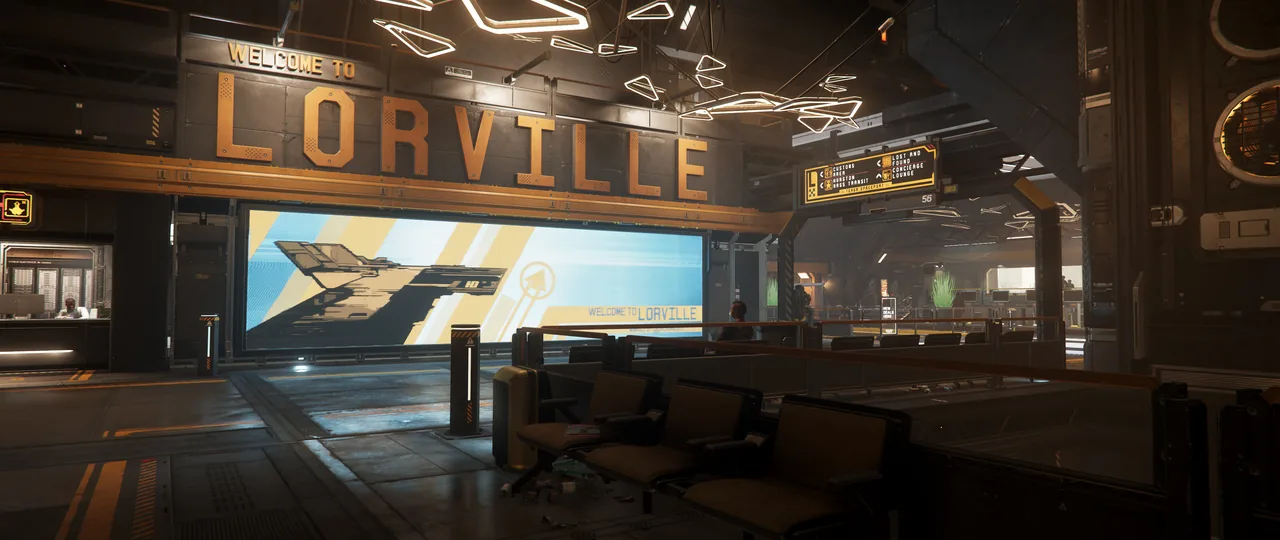
Fig. 02Waiting area under the Welcome to Lorville sign, planet Hurston · in-game · Image: Cloud Imperium Games - Area18
- The elevator is across the corridor from the window. Ride it to Ground Floor and leave Adira Falls to the right. Follow the ArcCorp Plaza signs down a narrow alley lined with vending machines. Cross the plaza beneath the giant FIZZ hologram and head down into AC CityFlight. Keep right for the Spaceport trains. Riker is the next stop, and a sign on the far wall confirms it. Turn right, walk through Customs, and the ship terminals of Riker Memorial Spaceport are just ahead.
- Lorville
- The elevator is across from the window on the upper level of the commons. Ride it to Ground Floor and walk outside. Turn left at the dumpsters, climb the steps, and turn left again at the UEC shop. Metro Center is the big station on your left. Go down the stairs, turn right, then take the next two lefts to the Spaceport Line. Teasa Spaceport is one stop away. The lines loop, so don’t stay on. Walk left through Customs and up the stairs, and the ship terminals are at the top on your left.
- New Babbage
- The elevator is next to the smaller window in the corridor. Ride it down to ground level, step out of The Nest and head for the MT Metroloop sign. At the bottom of the stairs, go left for the Spaceport train and ride one stop. Take any lift up, pass the Security Checkpoint, and bear left, then right, up the stairs to the Departure Lounges. Turn left at the top. The ship terminals are on your right, with the hangar elevators around them.
- Orison
- Turn right outside your door to find the elevators, and take one to Green Circle Lobby. Turn left and follow the EXIT signs to the side door that opens onto Cloudview. The shuttle station is ahead on your right. Ride the shuttle to Providence Platform, then take the lift on your right to August Dunlow Spaceport. Pass security into the Departure Lounges, and follow the Hangar signs past the shops to the terminals.
If it goes wrong
Wrong train? Get off at the next stop and catch one going back. Trains come often, so you won’t be lost for long.
-
Step 5: Retrieve your ship
Already in your hangar? Use the terminal there, pick your ship and press Retrieve, and it appears in front of you. You can skip the elevator part.
Otherwise, find a ship terminal. Some spaceports signpost them as Vehicle Retrieval, and players call them ASOPs. StarCitizenHelp describes them as tall yellow kiosks. You’ll usually find them near the hangar elevators, just past Customs. Tap F on one and pick your ship from the list.
Playing in a Free Fly?
The event’s free ships are added to your account and appear in the terminal’s ship list. If they’re not with the others, look under the Loaner tab. Some events also let you rent ships at a rental terminal, either with aUEC or free on certain event days. Rented ships then show up under Rentals. If your list is empty, the event’s Comm-Link lists which ships are included.
If the terminal offers Deliver, press it first to bring your ship to this spaceport. Then press Retrieve (some screens say Spawn) to send it to a hangar. A message in the top-right corner gives your hangar or pad number. If you miss it, check your mobiGlas. Note the number down, because you’ll pick it in the elevator. Take any of the hangar elevators near the terminals, since each one reaches every hangar. At home, your hangar is listed as Personal Hangar. Give the ship 30 to 60 seconds to appear, and stay off the landing area in the middle of the hangar until it has finished arriving.
- Ship listed as destroyed? Choose Claim and wait out the timer, or pay aUEC to shorten it, and the ship comes back. The FAQ below has more detail.
- Ship stored somewhere else? Choose Deliver at the terminal to have it brought here, then Retrieve it. Deliveries run on a timer that scales with the ship’s value, and you can pay aUEC to speed them up. Or travel to wherever the ship is parked.
- Away from home, or if your ship is too big for your personal hangar, you get a temporary or public hangar.
If it goes wrong
Is your hangar missing from the elevator panel? It’s probably still loading. Docking ports and pads are usually listed first, so scroll down. Still not there? Step out and try the next elevator, or go back to the terminal and press Retrieve again, which usually makes it show up (tip via Star Docs). If the ship hasn’t appeared after two or three minutes, store it and retrieve it again.
-
Step 6: Board, power up and take off
Walk up to the ship and hold F on the hull to find the way in. Depending on the ship, that’s a ramp, a ladder, a side door, or the cockpit itself. Sit in the pilot seat by holding F on the seat or tapping F at the prompt. Then hold F and choose Flight Ready, or press Right Alt + R. That one step gets the ship ready to fly. (U switches power on and off for everything. If you use it instead and the ship has power but won’t move, press I to switch the thrusters on.)
Ask for take-off clearance with Left Alt + N. Nothing happening? Open the Comms app on your mobiGlas: press F11, or press F1 and choose Comms. The spaceport is pinned to the top of your Friends list. Select it and request take-off. The hangar doors open once you’re cleared.
Don’t move until the doors have finished opening, and look up, because in some hangars the way out is through the roof. Hold Space to rise slowly off the floor. Once you’re clear, tap N to fold the landing gear away. Then fly out with W and steer with the mouse. Save boost (hold Left Shift) for open sky.
Once you’re out of the hangar, climb steadily and fly away from the tall buildings. If a no-fly zone warning appears on your HUD, turn out of the area at once. If you stay in it, your ship is impounded (confiscated), which is a hassle to sort out. Keep your speed low near pads and towers, because collisions hurt. When your HUD says you’ve left the armistice zone, weapons work again for everyone, including you. Point the nose at the sky and keep going. Your HUD shows your altitude, and when that readout disappears, you’ve left the atmosphere and reached space.
If it goes wrong
If the ship has power but won’t move, use Flight Ready, or press I to toggle thruster power. In the pilot seat some keys change meaning: I switches the thrusters on and off instead of opening your inventory. If the doors never open, see the FAQ below.
-
Step 7: Plot a route and quantum travel
Press F2 to open the starmap. Type the station listed for your city in step 2 into the map’s search field, or find it on the map and click it. Then choose Route to this Location. The route panel shows how much quantum fuel the trip needs, and a starter ship has plenty for this hop. Close the map and hold B to switch from SCM to NAV mode. Quantum is normally the active NAV option. If it isn’t, click the middle mouse button to cycle to it. Use the mouse to turn until the quantum marker sits in the middle of your view, then hold still. The drive takes about 5 to 15 seconds to calibrate, and your HUD shows QUANTUM READY when it’s done. Then press and hold the left mouse button until the jump starts.
Tip
NAV mode switches off your shields, weapons and countermeasures. The jump drops you out short of the station, so you fly the last stretch yourself. Hold B to switch back to SCM, find the station’s marker, and fly toward it with W until the distance reads about 5–7 km. Then call for landing.
If it goes wrong
If the jump won’t start, check that you’re out of the atmosphere, in the pilot seat, in NAV mode, aimed at the marker, and have fuel. Older guides say “tap B to spool, hold B to jump”. That method ended with the 2024 flight-mode overhaul.
-
Step 8: Request landing, find your hangar and power down
Keep flying toward the station until its marker reads about 5–7 km, then call it with Left Alt + N. A busy station may make you wait your turn. When it says yes, a new marker appears. Follow it to your hangar, pad or docking port. If the key gets no answer, use the same backup as at take-off: open Comms (F11) and pick the station’s Landing Services from the top of your Friends list. Slow right down (X brakes, Left Alt + mouse wheel caps your speed), lower the gear with N, and drift in. Press F4 (outside view) or hold Z (look around) to check you’re not about to hit the walls, then sink gently onto the middle of the pad with Left Ctrl.
Wait for the station to confirm your landing. Then switch the ship off (press U), hold Y to stand up, and use F on the door or ramp to get out. Head into the station by the hangar elevator, or by the walkway from your pad, and find a ship terminal (ASOP). Select your ship and choose Store Vehicle. Don’t leave the ship parked on an open pad. Staying too long counts as a parking violation, an offence that can get you penalised, and a ship left on a pad gets a warning and is then despawned.
Tip
Tap N for the gear. Holding it starts the auto-landing. It’s handy, but learn to land by hand first.
-
Step 9: What next
- Your first contract: open the mobiGlas Contracts app. Some guides still call it the Contract Manager. Start with a small delivery job. These teach you your way around, as long as the package and the route suit your ship. Hauling jobs are a bigger step. The cargo comes up on a freight elevator, you need a tractor beam to move the crates into your ship, and the crates have to fit your hold. Leave those for your second or third run. Before you accept anything, open it and check the destination, the pay, and any warning about hostiles. Leave Mercenary and player-bounty contracts until you’re comfortable in a fight.
- Home vs. respawn: your home location is fixed until the next patch, but your respawn point isn’t. By default you respawn at the hospital in your home location. To respawn closer to where you’re working, visit any hospital or clinic and look for the screen at the foot of a medical bed, or a standalone regeneration terminal. Set that place as your respawn point there, and use the same screen later to switch back to home. If the spot you picked isn’t available when you die, you’re sent home instead.
- Buy a MedPen: a MedPen (Hemozal) is your first-aid kit in a syringe. One jab heals you, ends any bleeding, and gets you back on your feet if you’ve been knocked down. Most shops charge about 265 aUEC. Pharmacies sell them, as do the Kel-To shops at Riker Memorial, Teasa, August Dunlow and New Babbage’s spaceport, Cubby Blast in Area18, and many stations. Keep one or two on you. To use one, press 4 to open the consumables wheel and pick the MedPen, then follow the on-screen prompt to inject yourself. Right-click injects a teammate instead.
- Getting help: ask in global chat (press Enter). Most veterans are glad to answer a question. You can also try RSI’s Spectrum forums, Find a Guide on Spectrum (experienced players who volunteer to mentor newcomers), and the RSI Support knowledge base, where you can also file a ticket.
Stay sharp: PvP, pirates and scams for new players
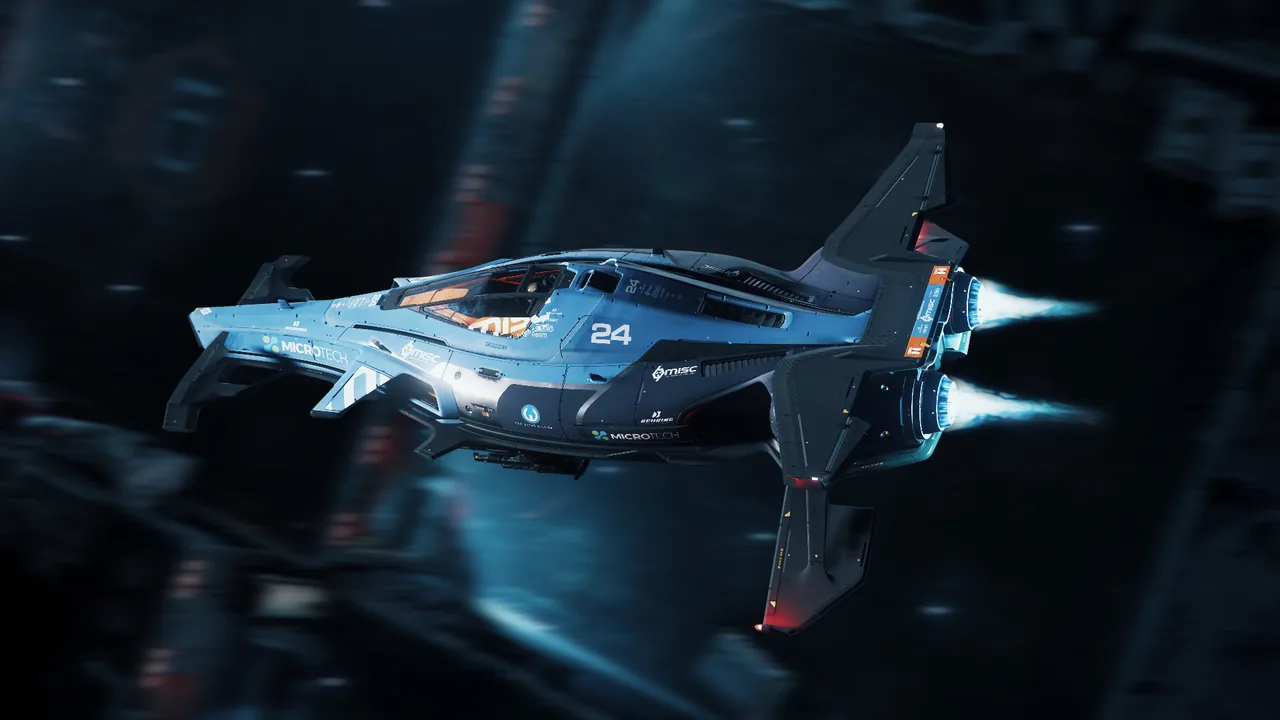
Star Citizen is an open-world PvP (player-versus-player) game. Each server holds hundreds of real players, and outside protected areas any of them can shoot you, board you or rob you. Most people you meet are friendly or busy with their own jobs. Some aren’t, and you can’t tell which is which just by looking. So be friendly but cautious with everyone, all the time. The point isn’t to scare you. Knowing this up front is what keeps you flying.
Armistice zones vs. open space
Cities, spaceports and many stations are armistice zones. You can’t draw a weapon there. Depending on the station, ship weapons are either switched off or firing them gets you fined. Your HUD shows a notice when you enter or leave one. Outside them, anything goes. Not every station is covered, and bugs have occasionally switched zones off (4.10.1 fixed missing zones across Orison), so don’t count on armistice to protect you.
Where the law runs out
Stanton is the safe end of the ’verse. Corporate security enforces UEE law there, and crimes earn you a CrimeStat. Then bounty hunters come after you, stations deny you landing, and you can end up in Klescher, the prison you’re sent to if you’re caught. Even Stanton has an outlaw station, GrimHEX near Yela, and pirates work Stanton’s routes too.
Pyro has no government and no police, only gangs fighting each other for control. Its Contested Zones at Checkmate, Orbituary and Ruin Station are free-fire areas, with both NPCs (computer-controlled characters) and players shooting at you. Ruin Station is held by XenoThreat, a violent pirate faction.
Nyx isn’t UEE space. The People’s Alliance runs it from Levski, but small-time pirates are a real risk, and the farther you stray from the standard space lanes, the likelier you are to meet them. Outlaw bases are said to hide in the system’s two asteroid belts, the Glaciem Ring and the Keeger Belt.
Dangers and scams new players run into
- Interdiction. Pirates can drag you out of a quantum jump partway through. Ships like the RSI Mantis carry a quantum snare that pulls you into normal space, and a dampener that stops your drive from charging while you’re close to them. It happens most on busy routes and in Pyro, and computer-controlled pirates do it too.
- The friendly stranger. “Want a ride?” “Join my party, I’ll help you out.” Accepting a party invite can give someone access to your hangar and ship. Some players use that friendliness to set up an ambush.
- Cargo and looting. Insurance brings your ship back but never your cargo. Items in your backpack stay on your body for anyone to loot.
- Ambushes at pads and outposts, usually while you’re busy loading or unloading.
- Real-money scams. Grey-market ship sales, aUEC sellers and account sales all break RSI’s rules, and RSI won’t help you if you get burned. RSI lets each eligible item be gifted only once, and pledges over US$1,000 can’t be gifted at all, so treat any “I’ll gift you a ship” offer from a stranger as a red flag. (RSI Terms of Service, section VII.B.)
- Phishing. Fake Discord “verification” links and links in friend requests are common. A breach at CIG on January 21, 2026, exposed names, usernames, dates of birth and contact details. No passwords or payment data were affected, but phishing messages may use your real name. RSI will never ask for your password.
Eight habits that keep you alive
Lock down your account. Use two-step authentication and a unique password, never share codes, and type robertsspaceindustries.com into your browser yourself.
Don’t accept party invites from strangers. Don’t let them into your ship or hangar, and don’t give them seat or door permissions.
Check your radar before you leave armistice and after every jump. Hold Tab and release it to ping, which shows nearby ships on your radar. (V switches to scanning mode, which is a different thing.) A ship sitting just off your route is a warning sign.
Stay in Stanton for your first sessions. Leave Pyro, Nyx and the Contested Zones until you’re flying with a crew.
Fly cheap. Use inexpensive gear and cargo loads you can afford to lose, keep valuables in storage at home, and carry a MedPen.
Keep your plans private. Don’t post routes or cargo in global chat, and use party chat for private talk. Proximity voice carries to anyone nearby.
If you’re caught, run or comply. Don’t fight a group alone. Hold Left Shift to boost straight away from the attacker, and keep going until your quantum drive will charge again. Then jump to any destination. If you can’t get away, handing over what they ask is a fair trade, because your ship comes back with a claim.
Stay on the right side of the law. Land where ATC sends you, clear the pad, and don’t fire unless you’re sure. A CrimeStat makes you fair game for every bounty hunter around.
If someone is harassing you
RSI’s Terms of Service ban harassment and griefing. Record what’s happening and file a report with RSI Support.
Fly with a crew: why join an organization
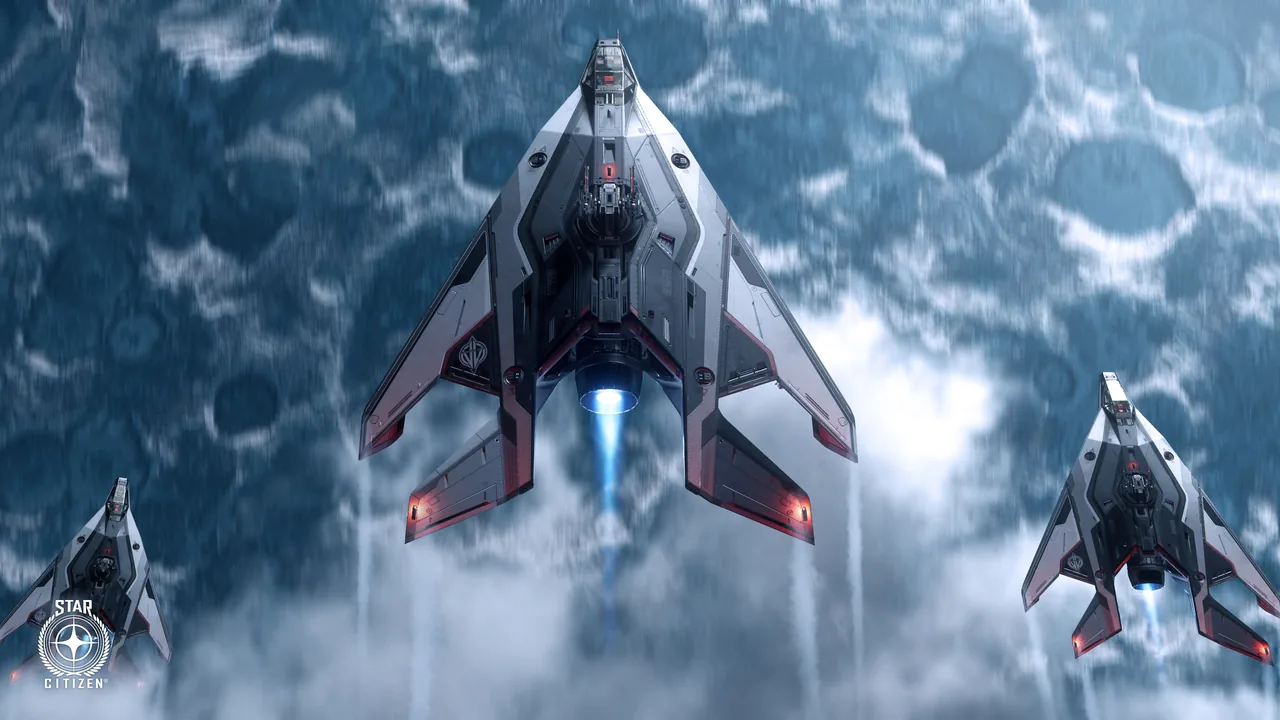
Organizations (“orgs”) are player-run groups, Star Citizen’s version of guilds. Joining one is the quickest way to learn the game and the best protection you’ll find. Here’s what you get:
- Crew for the big ships. Multi-crew ships need pilots, gunners and, since 4.5, engineers to manage power and handle fires and repairs. An org fills those seats.
- Shared contracts. Accept a job and share it with your party, and everyone gets an equal cut of the money and the reputation. The one exception is bounties on real players, which stay with whoever took them.
- Group quantum jumps. Party members who stay close to the jump leader with their drives charged can jump together, so nobody arrives alone.
- Safety in numbers. Someone flying escort and watching the radar makes you a much harder target. Friends carrying MedPens can also revive you.
- Faster learning. Veterans can teach you in an evening what takes weeks to work out solo.
- Big operations. Fleet battles, large event missions, and other content that’s best with a crowd.
Browse orgs in the RSI organization directory, which you can filter by activity, commitment level and language. Some orgs are Exclusive: you must make them your main org, and usually you can’t join any others. Free accounts may not be able to join orgs on the RSI site. If the Join button doesn’t work for you during a Free Fly, join the org’s Discord in the meantime.
Our crew: Jokers Gambit
Jokers Gambit calls itself “The Premier Mercenary Force in the ’Verse.” It’s a guns-for-hire outfit: it escorts haulers, guards sites, hunts bounties and takes on combat contracts, with crewed capital ships to back it all up. Its divisions follow a playing-card theme:
| Suit | Focus |
|---|---|
| Spades | Fighter Command: snub fighters up to sub-capital ships |
| Diamonds | Capital Ship Ops |
| Clubs | Engineering & Industry: damage control, resupply and loot recovery |
| Hearts | Ground Forces & Spec Ops: FPS, boarding and Contested Zones |
New recruits start with a 4-week probation. Leadership can cut that to 2 weeks for especially active members. After that, the org votes on full membership, and accepted members get the JKR tag. In the org’s own words, the attitude is: “If you enjoy a joke and like to chill while kicking ass, we’ve got a place for you.”
Know before you join: Jokers Gambit is PvP-focused, and by its own description it takes work on both sides of the law, so expect combat to be a big part of org life. It’s listed on RSI as an Exclusive org, so it would have to be your main org, and you usually couldn’t join any others.
- Website
- jokersgambit.org
- RSI org page (org ID J0K3R5)
- robertsspaceindustries.com/
orgs/J0K3R5 - Discord
- discord.gg/jokers
Common first-day problems and fixes
The hangar doors won’t open.
Request clearance with Left Alt + N. If the key does nothing, use the backup from step 6: open Comms (F11) and select the spaceport at the top of your Friends list. If that still doesn’t work, store the ship and retrieve it again.
My ship isn’t in the hangar, or my hangar isn’t on the elevator list.
See the “If it goes wrong” box in step 5.
The quantum drive won’t start.
Check each of these: you’re out of the atmosphere, in the pilot seat, holding B for NAV mode, aimed at the route marker, and you have quantum fuel. Then hold the left mouse button, because a single click won’t do it. If you’ve changed keybinds, make sure B is set to the NAV mode switch and not an old quantum bind.
My ship is drifting or handling strangely.
You may have switched to decoupled flight, which StarCitizenHelp’s 4.10.2 keybind list puts on C. Press it again to switch back.
My ship keeps flying when I let go of the keys.
You’ve probably turned on cruise control. StarCitizenHelp’s 4.10.2 list puts it on Left Alt + C, while RSI’s own guide says C. Press the same key again to turn it off.
I can’t draw my weapon, or kiosks and ladders won’t respond.
Inside an armistice zone you can’t ready a weapon at all, which is normal. Outside one, a drawn weapon blocks many interactions, so holster it first.
I’m hungry, thirsty or bleeding out.
Take your helmet off, then eat or drink (see the tip in step 3). For injuries, press 4, pick a MedPen and inject yourself. Next time, buy a couple before you leave the city.
I died. Where’s my stuff and my ship?
You wake up at your respawn point, wearing the gear you had equipped. That’s your home location’s hospital unless you set another one at a clinic. Anything in your backpack or armour pockets stays on your body where you died. Claim your ship at any ship terminal (ASOP). Cargo isn’t insured and is lost.
How claims work: the wait depends on the ship’s value, and claiming the same ship again doesn’t cost more. You can pay aUEC to shorten the wait, which is called an expedite. Each aUEC you spend makes the timer run at double speed, and the fee is capped at a tenth of the claim cost. There are two kinds of claim. A free manufacturer claim takes longer and returns the stock loadout, meaning the weapons and parts the ship came with. A paid Claim Insured Loadout returns the loadout you saved. To save a loadout, use the save icon on the ship terminal while the ship is out.
Sources and further reading
These are the guides and pages we used as references, if you want to go deeper. This page is written in our own words.
RSI and CIG sources
- Getting Started in the ’Verse (RSI Knowledge Base, updated July 2026)
- Install the RSI Star Citizen Launcher (RSI KB, July 2026: install steps, LIVE/PTU channels, Verify)
- How to Quantum Travel and How to Land Your Ship (RSI KB, June 2025)
- “Now Leaving” city walkthroughs: Area18, Lorville, New Babbage, Orison (RSI KB, June 2025)
- Locations in Star Citizen and Playing with Friends (RSI KB, July 2026)
- Set up keybindings (RSI KB, Feb 2026)
- Equipping Your Character (RSI KB, June 2026: armistice weapon rules)
- Bricked Items and Ships (RSI KB, June 2026)
- Beginner Guides section (RSI KB)
- Master Modes Guide (CIG, July 2024, via a Comm-Link mirror)
- Find a Guide on Spectrum and Organization directory
- RSI Terms of Service (section VII.B, Gifting)
Star Citizen Wiki (starcitizen.tools)
Community guides (2026)
- Your First Star Citizen Session: From the Hangar to Your First Contract (The Impound, Oct 2026)
- SCANZ.SPACE New Player Guide (July 2026)
- StarCitizenHelp: Keybinds (4.10.2 defaults, Oct 2026), How to Quantum Travel (Oct 2026), How to Call Your Ship (2026)
- Day One Citizen keybinds (2026)
- How do I find my Personal Hangar? (Star Docs)
- Video: MrKraken, 2026 Starter Guide (Apr 2026) and RidgeSix, Updated New Player Guide (2026) (May 2026)
Security and news
- Star Citizen game dev discloses breach affecting user data (BleepingComputer, Mar 2026)
Jokers Gambit
- jokersgambit.org and RSI org page (both read Oct 18, 2026)